


Sales Director


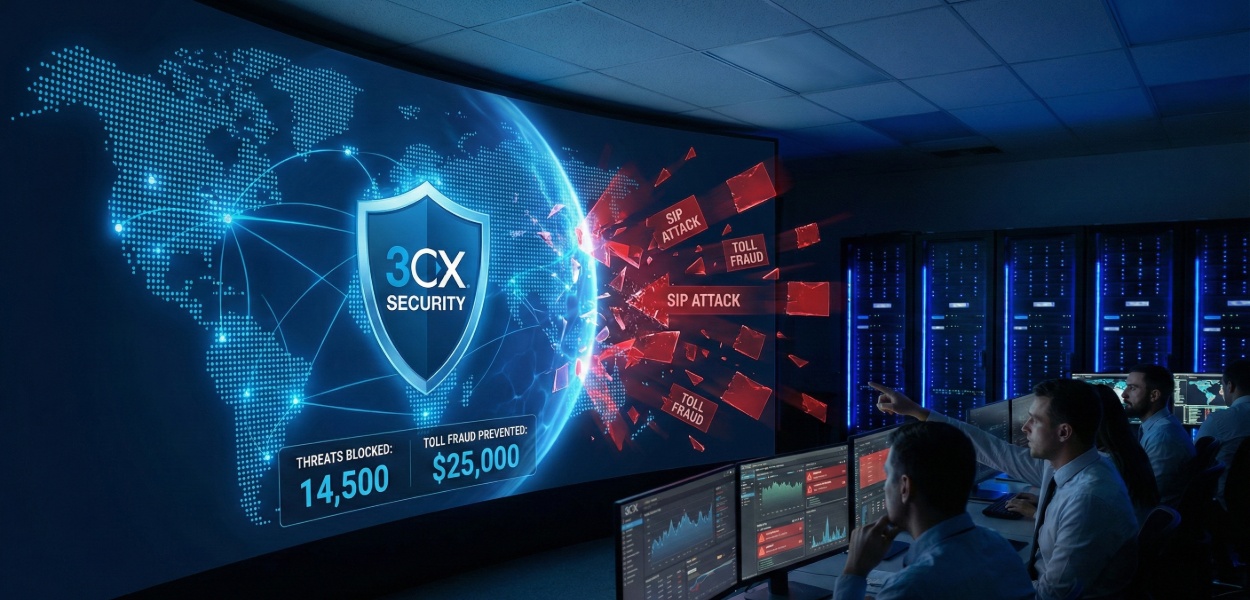


For any IT decision-maker or business owner in the UK, deploying a new communication system brings two primary concerns: cost and security. While 3CX powerfully addresses the cost concern with its flexible licensing, its IP-based nature exposes it to the same threats as any other network service. Unsecured PBX systems are a prime target for attackers seeking to commit toll fraud (making unauthorised international calls at your expense) or conduct SIP-based attacks. While The Ultimate 3CX Guide for Business: Setup, Pricing, Features, and Best Practices provides a high-level overview of the system, this guide will serve as your definitive, deep-dive checklist for hardening your 3CX installation.
Security is not a "set it and forget it" task. It's an ongoing process of diligence. The steps below are designed to create a multi-layered defence, locking down your management console, hardening your extensions, and preventing malicious actors from ever gaining a foothold. Follow this 10-step guide to ensure your 3CX system is a fortress, not a liability.
The most fundamental layer of your 3CX security starts at the network edge. If your firewall isn't correctly configured, no amount of application-level security can protect you. 3CX provides a built-in tool to validate this critical first step.
The 3CX Firewall Checker is a non-negotiable, mandatory step for any secure deployment. This tool, found within the 3CX Management Console, simulates SIP and RTP traffic to ensure your firewall is correctly configured to pass 3CX traffic without issues.
It tests all required ports for 3CX, including the SIP (default 5060 TCP/UDP), RTP (default 9000-10999 UDP), and 3CX Tunnel (default 5090 TCP/UDP) ports.
A failing Firewall Check indicates a "cone NAT" or other network-address translation issue. This not only leads to call quality problems (one-way audio, failed call setup) but can also be a security risk. If your firewall is not correctly mapping ports, it may be leaving other services unintentionally exposed.
1. Log in to the Management Console.
2. Go to Dashboard > Firewall.
3. Click Run.
The Goal: You must see all green checkmarks. A single red or warning message indicates a misconfiguration on your router/firewall that needs to be resolved before proceeding. This often involves creating 1:1 NAT (or Static NAT) rules and ensuring SIP ALG (Application Level Gateway) is disabled on your router/firewall, as it is notorious for corrupting SIP packets.
Within the 3CX Management Console, the "Security" tab houses several of your most powerful global defences.
Enable SSL/TLS: In the Security > Security Settings menu, ensure that "Enable SSL/TLS Transport and Ciphers" is checked. This encrypts SIP traffic between endpoints and the server, making it much harder for attackers to "sniff" or intercept call data.
Secure Ciphers and Protocols: 3CX allows you to enforce modern security protocols. Ensure "Enable PCI compliance SSL/TLS" is checked. This disables older, insecure ciphers and TLS versions (like SSLv3 and TLS 1.0/1.1), which are vulnerable to attacks like POODLE. This is essential for protecting your web-based Management Console and Web Client.
Restrict Access to the Web Console: Under Security > Allowed IP Addresses, you should immediately restrict who can access the Management Console.
Best Practice: Create an IP whitelist. Allow only the specific static public IP addresses of your IT team and your office locations.
Bad Practice: Leaving it open to "All IPs." This allows attackers from anywhere in the world to attempt to brute-force your admin login. If you must have remote access, use a VPN to connect to the network first, and add the VPN's IP range to the allow list.
Your users' extensions are the most numerous and often weakest links in your security chain. An attacker who compromises a single extension can potentially make outbound calls, listen to voicemails, and pivot to attack other parts of your network.
3CX has two critical credentials for each extension: the SIP Authentication Password and the Voicemail PIN.
SIP Password: This is used by the phone/softphone to register with the PBX.
Action: In Security > Security Settings, set the "Password Complexity" requirements to the strongest possible setting. Mandate a minimum length (e.g., 10+ characters) and enforce the use of upper, lower, numbers, and symbols.
Audit: Regularly audit your extensions. Look for any that still have weak, default, or simple passwords (like the extension number itself) and force a change.
Voicemail PIN: This is used to access voicemail.
Action: Enforce a minimum PIN length of 5 or 6 digits. The default of 4 is too easily brute-forced.
Danger: A compromised Voicemail PIN can allow an attacker to access sensitive company information or, even worse, use the "Call Back" or "Forward" feature from voicemail to initiate a fraudulent call.
Not all users need to connect their devices from outside the office network. For every extension, ask the question: "Does this user need to use their softphone or desk phone from home?"
How to restrict: In Extensions > [Edit Extension] > Options tab, find the "Restrictions" section.
The "Allow outside LAN" setting:
Uncheck "Disallow use of extension outside the LAN" only for users who are truly remote or mobile.
For all on-premise, internal-only users (e.g., front desk, warehouse, back office), check this box.
Why this works: If this box is checked, the 3CX server will simply reject any registration attempt for that extension that doesn't come from a local network IP. This single setting completely neutralises brute-force SIP registration attacks from the public internet against that extension.
These settings are your proactive defence against the primary financial risk of a PBX breach: toll fraud.
Does your SMB really need to make calls to Sierra Leone or Antarctica at 3:00 AM? Probably not.
How to configure: Go to Security > Allowed Country Codes.
Action: By default, 3CX allows calls to all countries. You should change this immediately.
Select the "Select the countries you allow calls to" option.
Go through the list and check only the countries your business has a legitimate reason to call. For most UK SMBs, this list is very short (e.g., UK, Ireland, and specific European or US trade partners).
Impact: This is one of the most effective toll fraud preventions. Even if an attacker does compromise an extension, they cannot dial high-cost premium numbers in unlisted countries. The call will simply be blocked by the PBX.
Outbound Rules are not just for routing calls; they are a powerful security tool.
Block Premium Numbers: Create an outbound rule at the top of your rule list that explicitly blocks common premium-rate number prefixes (e.g., 09xx numbers).
Limit International Access: Don't give all extensions international calling rights. Create separate Outbound Rules for "Local," "National," and "International" calls.
Create an "International" user group in 3CX.
Configure the "International" outbound rule to only apply to extensions within that group.
This ensures a breach of a low-level extension (like a lobby phone) cannot be used to make international calls.
PIN-Protected Routes: For even tighter control, you can create an outbound rule for international calls that requires a PIN. A user would dial the number, be prompted for a PIN, and only then would the call proceed.
3CX has a built-in "dynamic" firewall that actively monitors for malicious behaviour and blocks attackers automatically.
How it works: Under Security > Anti-Hacking, you can configure the system's sensitivity.
Key Settings:
Failed Authentication Attempts: Set this to a low number, such as 5. This means if an IP address fails to log in to the web console or register an extension 5 times, their IP is blacklisted.
Blacklist Time: Set a long duration, such as 3600 seconds (1 hour) or even permanently (by adding to the global blacklist).
SIP "Invite" Floods: Enable protection against SIP flood attacks.
Global Blacklist: 3CX maintains a global blacklist of known malicious IPs. Ensure "Enable 3CX Global Blacklist" is checked to benefit from crowd-sourced security data.
A secure system is a monitored and updated system. Complacency is the enemy.
Attackers and security researchers are constantly finding new vulnerabilities in all software. 3CX is no different.
Go to Updates: The "Updates" section on the 3CX dashboard is one of your most important screens.
Enable Auto-Updates: For a self-hosted system, the safest option is to enable "Automatically update 3CX" (for service packs and security patches). This ensures you are patched against known vulnerabilities without manual intervention.
Firmware: Regularly check this section for updates to supported phone firmware. These patches often contain critical security fixes for the endpoint devices themselves.
If you manually update: You must have a rigid, scheduled process to check for and apply updates at least once a month.
Logs are your early warning system. An attacker who is "testing" your defences will leave footprints.
Audit Log: Found under Event Log > Audit Log. This log shows all configuration changes made in the Management Console.
What to look for: Any changes you don't recognise. New extensions being created, outbound rules being modified, or security settings being lowered are all massive red flags.
Event Log: This log shows system-level events.
What to look for: "SIP registration failed" messages. A few are normal (typos, network blips). A storm of them from a single IP is a brute-force attack in progress (which the anti-hacking measures should catch).
Call Log: Regularly scan your call logs. Look for any strange or unrecognised international calls, especially those happening after-hours. This is the clearest sign of active toll fraud.
The Management Console is the "key to the kingdom." If an attacker gains admin access, it's game over. We already mentioned IP whitelisting, but this final step adds another layer.
Strong Admin Password: This is obvious but critical. Your admin password should be 20+ characters, complex, and stored securely (e.g., in a password manager).
Change Default URL: Whilst this is "security by obscurity," it doesn't hurt. You can change the default /management URL to something else, making it harder for automated scanners to find your login page.
Use Named Admins: Do not share the admin account. Instead, in Security > Admins, create separate "Admin" accounts for each member of your IT team.
This creates accountability. You can see who made a change in the Audit Log.
Granular Permissions: You can also create "Owner" or "System Admin" roles with different levels of access. For example, a help-desk user might only need rights to manage extensions, not to change system-level security settings.
Two-Factor Authentication (2FA): 3CX supports 2FA (via Google Authenticator) for the Management Console. Enable it. This is a non-negotiable best practice. Even if an attacker steals your admin password, they cannot log in without the time-based token from your authenticator app.
Securing your 3CX installation is not a one-time event but a continuous posture of vigilance. By following these 10 essential steps, you have moved from a default, vulnerable installation to a hardened, multi-layered defence. You've protected your network edge with the Firewall Checker, hardened your users with strong policies, proactively blocked toll fraud with country codes and outbound rules, and locked down your administrative access.
Whilst these steps place you in the top tier of secure 3CX deployments, the threat landscape is always evolving. If managing this complex matrix of security settings, updates, and log monitoring feels overwhelming, consider partnering with a managed 3CX provider. We can handle the day-to-day security burden, letting you focus on what your business does best.
Speak to our team about managed 3CX solutions and security hardening services.
Get in TouchDiscover the complete feature set and pricing structure of 3CX.
Learn why businesses choose 3CX for flexibility and control.
Compare 3CX with other leading UK phone systems.
Explore the advantages of switching to 3CX.
Understanding the technology behind 3CX security.
Common questions about VoIP security and implementation.

With over 25 years’ experience at T2k, Lee began his career as a telecoms engineer before progressing to Sales Director. He leverages his foundational technical knowledge to provide businesses with impartial, expert advice on modern communications, specialising in VoIP and cloud telephony. As a primary author for T2k, Lee is dedicated to demystifying complex technology for businesses of all sizes.
Tell us your needs — we'll match you with the best system and price.
🔒 No spam. Your details are secure. We'll contact you within 24 hours.
Need help? Give us a call on 0808 202 3200
Rated 4.9


